
Gaming · Platform not recorded
Improve Performance In CSGO - Best Launch Options!
Original source date
Answer
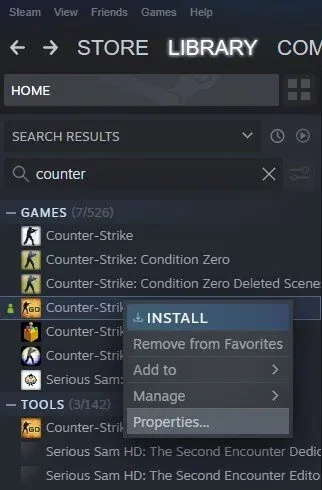
Tweaking the game's launch options can give you an edge over your opponents. Launch options control how the game starts and can impact its performance, visuals, and overall experience. Open up Steam and navigate to your game library. Once you're there, right-click on Counter-Strike Global Offensive and select Properties. Go to the General tab and add the new launch options to optimize your gaming experience.
How to change Launch Options in CS:GO
Tweaking the game's launch options can give you an edge over your opponents. Launch options control how the game starts and can impact its performance, visuals, and overall experience. Open up Steam and navigate to your game library. Once you're there, right-click on Counter-Strike Global Offensive and select Properties. Go to the General tab and add the new launch options to optimize your gaming experience.
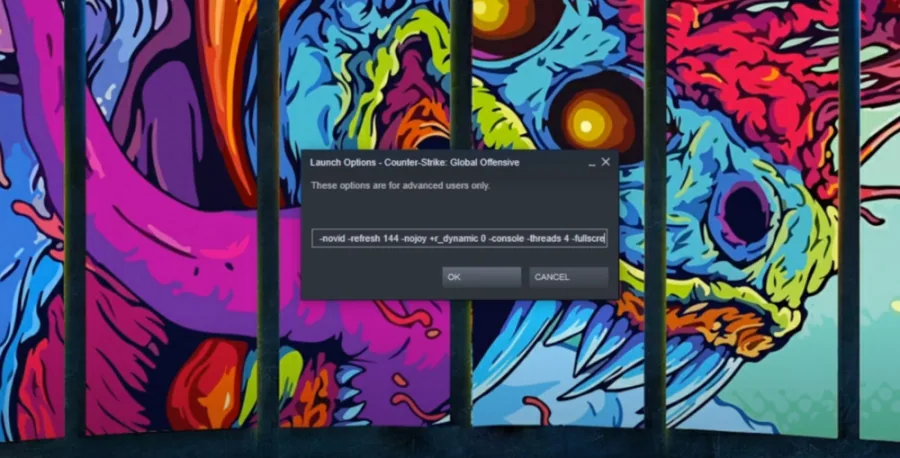
Enter the following commands: +fps_max 0 This command will set the maximum frame…
Enter the following commands: +fps_max 0 This command will set the maximum frame rate cap for your game. It's crucial to ensure that you set a higher value than your screen's refresh rate for the best results. Alternatively, you can lock it at a specific number that suits your preference. +cl_showfps 1 By entering this command, you'll be able to see your frame rate at the top left corner of your screen while in-game. This will give you real-time feedback on your game's performance and help you make the necessary adjustments to improve it. Incorporating these simple yet effective launch options into your CSGO gameplay will undoubtedly enhance your experience.

-high By entering this command, you can set the game's priority to high compared…
-high By entering this command, you can set the game's priority to high compared to other programs running in the background, ensuring that the game gets maximum resources from your PC. -novid This command simply disables the intro when you start the game, saving you time and getting you right into the action. -refresh / -refreshrate / -freq You can use this command to set the refresh rate of your screen while in-game, but make sure not to set it over your screen's actual refresh rate. -nojoy Disabling joystick support using this command can increase your FPS and improve your gaming performance. +r_dynamic 0 Disabling dynamic lighting by entering this command can significantly increase your game's performance. -console This command opens up the developer console when you start the game, which can be useful when using auto-exec files. -threads Use this command to set the amount of threads of your processor, but it's not recommended if you're using a dual-core CPU. -full / -fullscreen / -windowed / -window / -startwindowed You can use these commands to start the game in full-screen or windowed mode. +cl_interp 0, +cl_interp_ratio 1, +cl_updaterate 128, +cl_forcepreload 1 Using these commands will ensure the best connection to the server you're playing on. -autoconfig Finally, this command ensures that your auto-config commands will be executed when you start the game. You can use all of the available launch options if you feel like it, but we would suggest using one at a time to see which ones work best for you. Using these launch options, you can enhance your CSGO gameplay experience and take your skills to the next level. Give them a try and see the difference they can make!
Video walkthrough
If it does not work
- If the current interface differs, compare it with the recorded video walkthrough.