Windows 11 · Windows
How To Change your Windows 11 User Account Name - Tutorial
Original source date
Answer
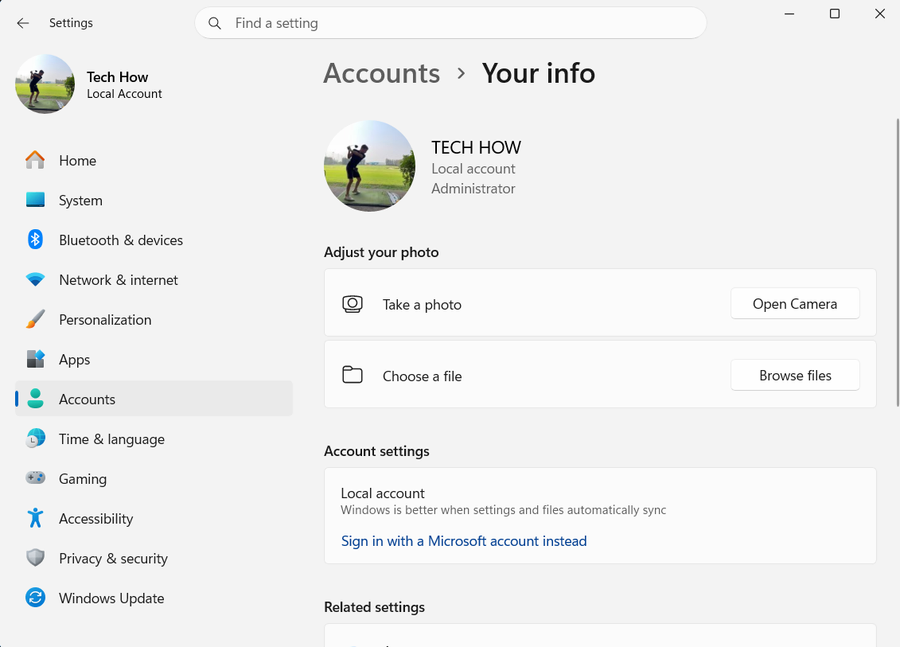
Ready to tweak your account name on Windows 11? Kick things off by launching the Settings application. A quick way to do this is by typing "Settings" into the search bar on your taskbar and hitting enter. Once you're in the Settings app, it's time to head over to the Accounts section, followed by clicking on Your info. Here, you’ll find the Manage my accounts option. Give it a click, and it will whisk you away to a Microsoft account page on your web browser. If you haven't signed in already, you'll need to do so to proceed.
Finding Your Account Settings on Windows 11
Ready to tweak your account name on Windows 11? Kick things off by launching the Settings application. A quick way to do this is by typing "Settings" into the search bar on your taskbar and hitting enter. Once you're in the Settings app, it's time to head over to the Accounts section, followed by clicking on Your info. Here, you’ll find the Manage my accounts option. Give it a click, and it will whisk you away to a Microsoft account page on your web browser. If you haven't signed in already, you'll need to do so to proceed.

Understanding Name Changing Limits
When it comes to changing your username on Windows 11, there are a few boundaries to keep in mind. These restrictions ensure that usernames and account information remain manageable and secure. Character Limits:For local account usernames, there's a cap of 20 characters.On the other hand, your Microsoft account allows a more generous 64 characters for both the first and last names, letting you get creative with longer names.; For local account usernames, there's a cap of 20 characters.; On the other hand, your Microsoft account allows a more generous 64 characters for both the first and last names, letting you get creative with longer names.; Frequency of Changes:Feel free to change your username as often as you desire, there's no limit on this.However, when it comes to altering your primary alias (this could be the email address or phone number you use to sign into Microsoft devices), there’s a restriction. You can only change this alias twice a week to maintain account security and integrity.; Feel free to change your username as often as you desire, there's no limit on this.; However, when it comes to altering your primary alias (this could be the email address or phone number you use to sign into Microsoft devices), there’s a restriction. You can only change this alias twice a week to maintain account security and integrity. By being aware of these limitations, you can ensure a smooth process as you personalize your Windows 11 user account name.

Video walkthrough
If it does not work
- How can I change my user account name on Windows 11?. Navigate to the Settings app on your Windows 11 PC, go to "Accounts" then "Your info." Click on "Manage my Microsoft account" to open a page in your web browser where you can edit your name under the "Your info" tab.
- Are there any restrictions on the characters used in a username on Windows 11?. Yes, local account usernames have a 20-character limit, while Microsoft account names can have up to 64 characters.
- Can I change my username on Windows 11 anytime?. You can change your username as often as you like. However, the primary alias (email address or phone number used for sign-in) can only be changed twice a week.
- Is changing the user account name on Windows 11 free?. Absolutely! Changing your user account name on Windows 11 is completely free and can be done within a few clicks.
- Will changing my username on Windows 11 affect my files or applications?. No, changing your username will not affect your files, applications, or settings in any way. It's a simple personalization feature provided by Windows 11.