
Mac OS · macOS Tahoe 26
Change your Mac display resolution
Source-checked About 2 minutes
Answer
Open Apple menu > System Settings > Displays and choose a resolution. Select the display you want to change first if several are connected.
Open Displays settings
Open System Settings from the Apple menu, then choose Displays in the sidebar.
Choose the display
Select the screen you want to adjust if more than one display is connected.
Select a resolution
Choose a resolution. Hover over thumbnails to see their sizes, or Control-click the thumbnail view and select Show List.
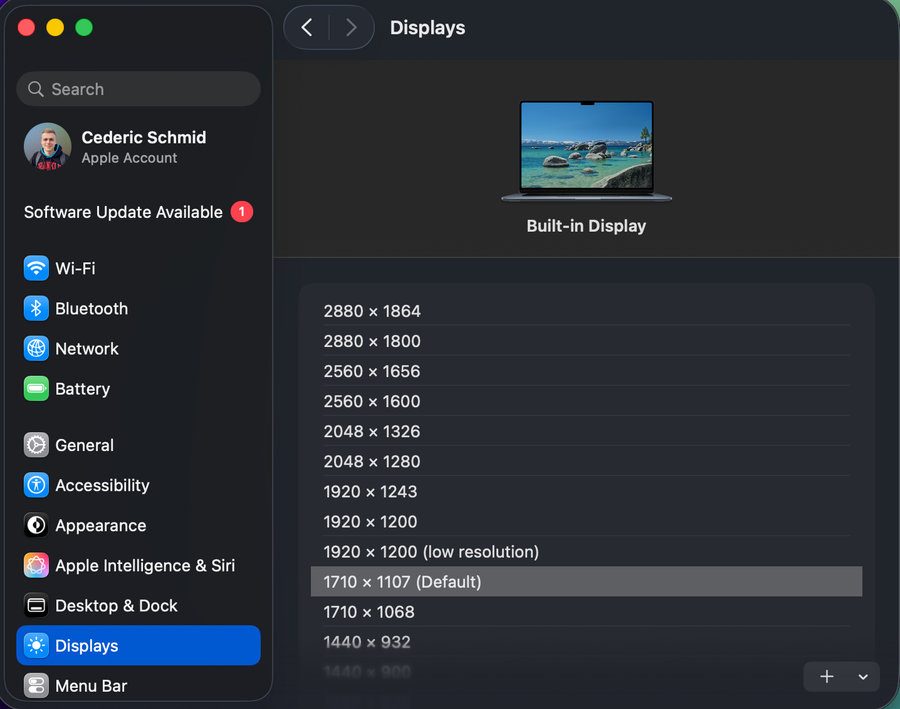
Show more choices when needed
For an external display, try Show all resolutions. Start with Default because scaling can affect performance.
Return to the previous resolution
If the screen goes black, wait 15 seconds. Press Escape if it has not recovered.
If it does not work
- If Escape does not recover the picture, start in safe mode, choose Default in Displays settings, then restart normally.
- If an external screen is missing, check the cable, adapter, and display detection before changing its resolution.
Sources and verification
Checked against official documentation on . Scope: macOS Tahoe 26.
Apple's current guidance supports the written path and recovery steps; menu labels and choices can vary by display and macOS version.