Windows 11 · Windows
How To Fix Bluetooth Not Working on Windows 11
Original source date
Answer
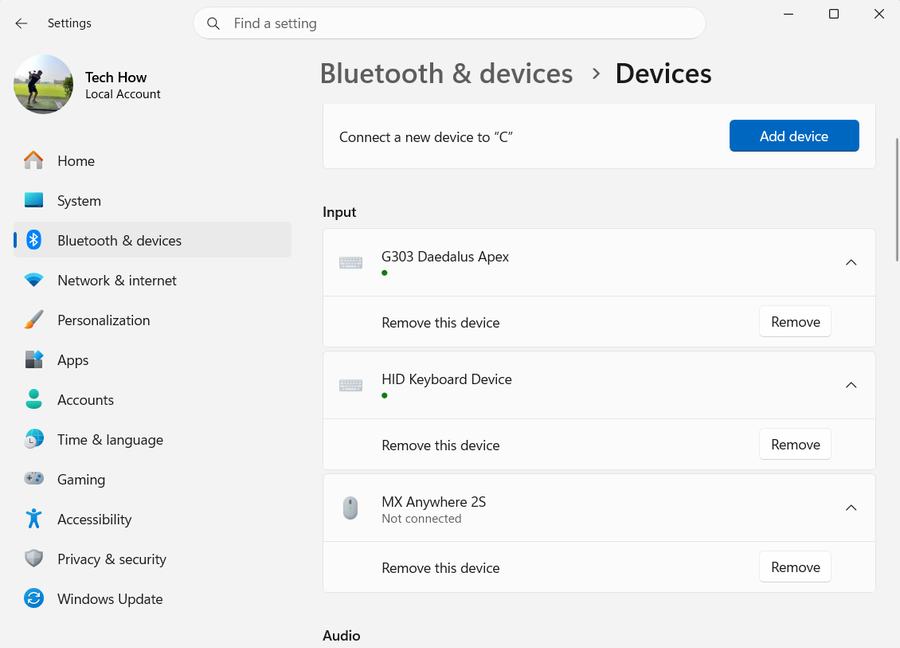
First and foremost, examine your Bluetooth configurations within Windows. Open your Windows settings and head to the "Bluetooth & Devices" category. Ensure that Bluetooth is activated, and take note of the name under which your device is discoverable when Bluetooth is enabled.
Adjust the Windows Bluetooth Configuration
First and foremost, examine your Bluetooth configurations within Windows. Open your Windows settings and head to the "Bluetooth & Devices" category. Ensure that Bluetooth is activated, and take note of the name under which your device is discoverable when Bluetooth is enabled.

Next, select Devices, and scroll down to access the "Additional Bluetooth Setting…
Next, select Devices, and scroll down to access the "Additional Bluetooth Settings" panel. In the Options segment, verify that the Discovery feature is turned on, allowing other Bluetooth devices to locate your Windows PC. Lastly, enable the "Display Bluetooth" option and apply the changes to make certain your device is discoverable and ready to connect.

Examine Bluetooth Device Functionality
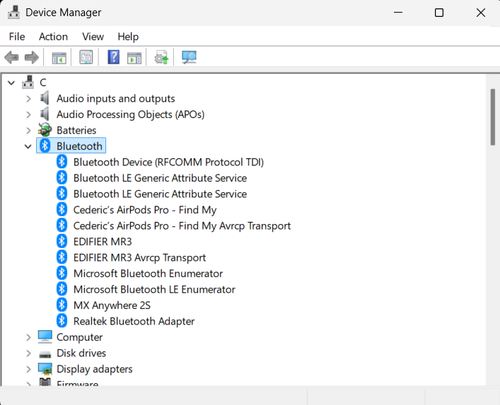
Within the Hardware segment of your Bluetooth Settings panel, you can determine whether the Bluetooth device is functioning correctly. If it's experiencing issues, you can access the device properties from this panel and modify settings, update the driver, or remove the device. This enables you to reset the connection and resolve any Bluetooth-related problems specific to that particular device.

Execute the Bluetooth Troubleshooter
Should Bluetooth continue to malfunction on your computer, it's advisable to use the Bluetooth troubleshooter. Return to your Windows settings, head to the System category, and choose Troubleshoot. Under "Other Troubleshooters," initiate the Bluetooth troubleshooter. The process will take a brief moment to scan and identify any Bluetooth-related problems, while attempting to rectify them.

Confirm Bluetooth Service is Running Smoothly
After completing the previous steps, verify that the Bluetooth service is operating correctly on your Windows PC. Type "Services" in the Start menu search to launch the Windows Services Manager. Alternatively, search for "Services.msc" if you're having trouble finding the app. In this window, click on any service and start typing "Bluetooth" to locate the Bluetooth Support Service. Right-click the service to access its properties.

In the General tab, confirm that the service status is running
In the General tab, confirm that the service status is running. If it's set to "Stopped," initiate it from this location. Adjust the Startup Type to "Automatic" and be sure to apply your modifications. You'll need to restart your PC for these changes to take effect.

Update and Restart your Windows PC
Before rebooting your system, it's recommended to download the most recent Windows update, guaranteeing the latest drivers and Windows files are installed on your computer. Navigate to the Windows Update section within your Windows settings, and select "Check For Updates." Download the newest update, ensuring your system is up-to-date, and then proceed to restart your PC. This will help eliminate any potential issues related to outdated drivers or software components.

Video walkthrough
If it does not work
- Why isn't Bluetooth working on my Windows 11 PC?. There could be several reasons for Bluetooth not working on your Windows 11 PC, such as incorrect settings, disabled Bluetooth service, outdated drivers, or hardware issues.
- How do I access my Bluetooth settings on Windows 11?. To access Bluetooth settings on Windows 11, open your Windows settings, and navigate to the "Bluetooth & Devices" section. Here, you can enable Bluetooth, manage connected devices, and access more advanced settings.
- What should I do if my Bluetooth device isn't working properly on Windows 11?. If your Bluetooth device isn't working correctly, access the device properties in the Hardware section of your Bluetooth Settings panel. From here, you can change settings, update the driver, or uninstall the device to reset its connection and fix potential issues.
- How can I run the Bluetooth troubleshooter on Windows 11?. To run the Bluetooth troubleshooter on Windows 11, navigate to System in your Windows settings, and select Troubleshoot. Under "Other Troubleshooters," run the Bluetooth troubleshooter, which will scan for Bluetooth-related issues and attempt to fix them.
- How do I update my Windows 11 PC to fix Bluetooth issues?. To update your Windows 11 PC, head to the Windows Update section in your Windows settings, click on "Check For Updates," and download the latest update. Restart your PC afterward to ensure the update takes effect, potentially resolving any Bluetooth issues.