Windows 11 · Windows

Missing Bluetooth Icon on Windows? Here's Your Complete Solution!

Original source date

Answer

To ensure that the Bluetooth icon is visible in the system tray, begin by opening your Windows settings. In the "Devices" section, select "Bluetooth & devices" and scroll down to click on "More Bluetooth Settings." In your Bluetooth settings, look for the option to display the Bluetooth icon in the notification area and make sure it's enabled. Apply your changes for them to take effect.

Reveal the Bluetooth Icon in System Tray

To ensure that the Bluetooth icon is visible in the system tray, begin by opening your Windows settings. In the "Devices" section, select "Bluetooth & devices" and scroll down to click on "More Bluetooth Settings." In your Bluetooth settings, look for the option to display the Bluetooth icon in the notification area and make sure it's enabled. Apply your changes for them to take effect.

show the bluetooth icon in the notification area

Now, return to the "Bluetooth & devices" settings and confirm that Bluetooth is e…

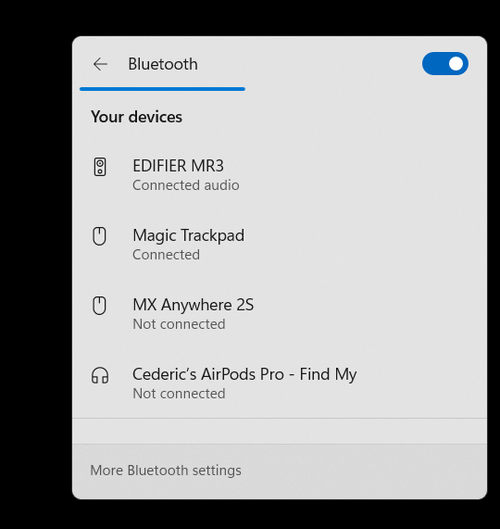
Now, return to the "Bluetooth & devices" settings and confirm that Bluetooth is enabled. When active, you'll be able to see the name under which your device is discoverable, allowing for easy connections with other devices.

enable bluetooth in bluetooth settings

Enable the Bluetooth Service

Ensure the Bluetooth service is enabled if the Bluetooth icon is still not visible in your system tray or Windows controls. To access the Windows Services Manager, search for "Services" in your start menu search bar, or type "Services.msc" if you have trouble locating the app. In the Services window, select any service and begin typing "Bluetooth" to find the Bluetooth Support Service. Right-click the service to access its properties. In the General tab, check if the service status is running. If it's marked as "Stopped," you can start it from here. Change the Startup Type to "Automatic" and apply your changes. Restart your PC for these updates to take effect.

enable the Bluetooth service

Execute the Bluetooth Troubleshooter

Before rebooting your computer, it's recommended to update your Windows and run the Bluetooth troubleshooter to identify and resolve any potential issues. Head back to your Windows settings, choose "System," and click on "Troubleshoot." In the "Other Troubleshooters" section, initiate the Bluetooth troubleshooter. The troubleshooter will take a few moments to scan for Bluetooth-related problems and attempt to fix them, ensuring a smooth and error-free experience.

windows Bluetooth troubleshooter

Update and Reboot Windows

Finally, navigate to the Windows Update section. Look for any new updates and download the most recent one if it's available. Once the update is installed, restart your computer, and the Bluetooth icon will reappear, enabling seamless connectivity.

check for windows updates

Video walkthrough

If it does not work

  • Why is my Bluetooth icon missing on my Windows computer?. The Bluetooth icon could be missing due to various reasons such as disabled Bluetooth settings, Bluetooth service being stopped, or outdated Windows updates. Following the steps in this article can help you resolve the issue and restore the Bluetooth icon.
  • How do I enable the Bluetooth icon in the system tray?. Open Windows settings, go to "Bluetooth & devices," navigate to "Devices," and click on "More Bluetooth Settings." In the Bluetooth settings, enable the option to show the Bluetooth icon in the notification area and apply the changes.
  • What should I do if the Bluetooth Support Service is not running?. Open Windows Services Manager, locate the Bluetooth Support Service, right-click on it, and access its properties. In the General tab, ensure the service status is running. If it's stopped, start the service, set the Startup Type to "Automatic," and apply the changes. Restart your PC for the changes to take effect.
  • How can I use the Bluetooth Troubleshooter in Windows to fix the missing icon issue?. In your Windows settings, navigate to "System" and select "Troubleshoot." Under "Other Troubleshooters," run the Bluetooth troubleshooter. This process will scan for Bluetooth-related problems and attempt to fix them.
  • Will updating Windows help restore the missing Bluetooth icon?. Yes, updating Windows can help resolve the issue. Go to the Windows Update section, check for recent updates, and download the latest update if available. Restart your PC, and the Bluetooth icon should reappear.