
iOS · iPhone & iPad
Complete Apple Account Setup for the iTunes Store on iPhone
Source-checked About 10 minutes
Answer
If the iTunes Store says the Apple Account has not been used, review Media & Purchases terms, store country, billing address, and payment method, then contact Apple Billing Support if setup loops.
Confirm the affected store account
Open Settings and confirm the Apple Account shown under Media & Purchases is the account that displays the message. Do not change the store region or enter invented billing details to clear it.
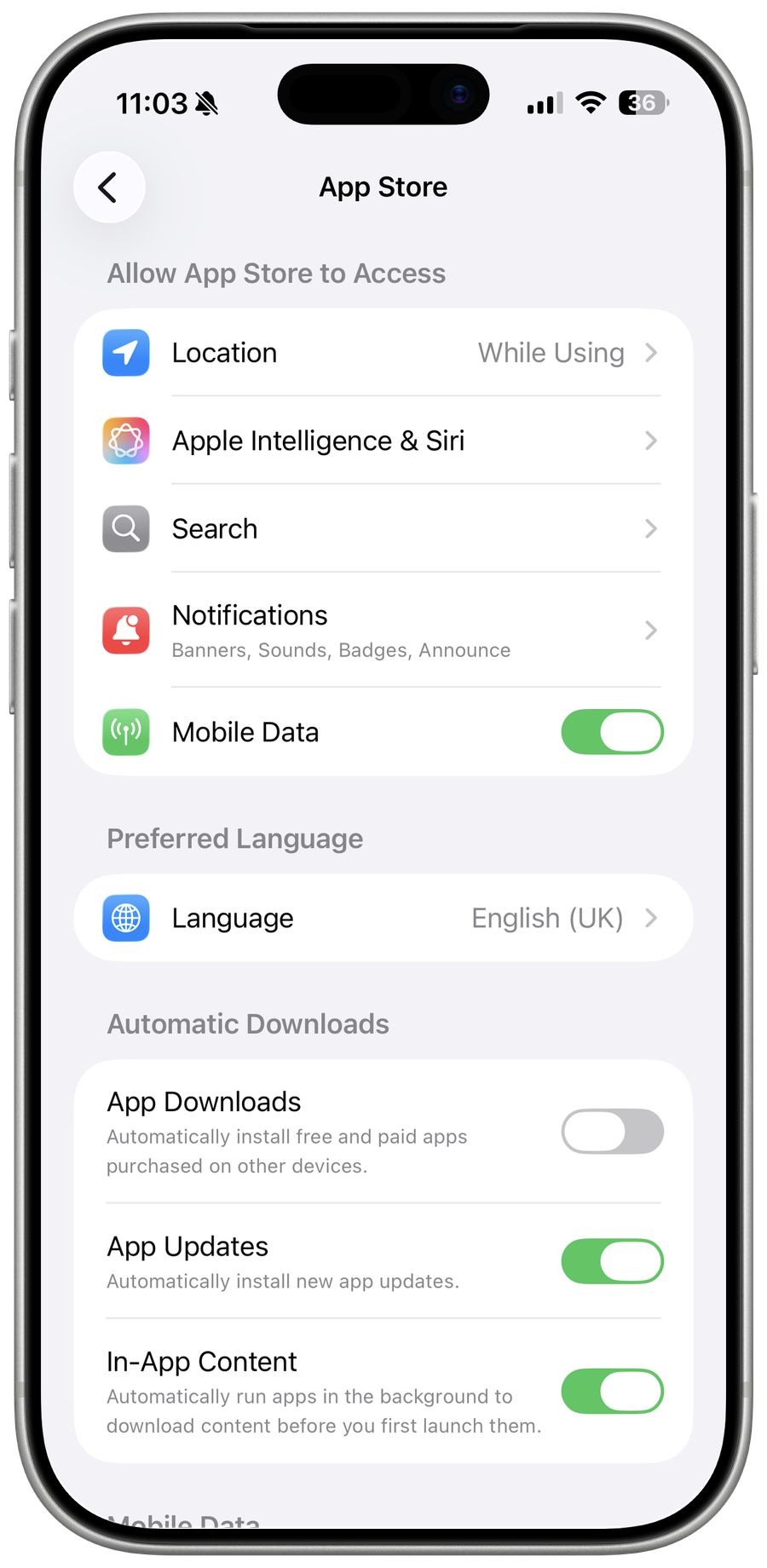
Open the store account
In Settings, tap your name > Media & Purchases > View Account and authenticate.
Complete required details
Review the country or region, billing address, and accepted payment method. Use accurate information that matches the account's store region.
Accept Media Services terms
Open App Store and attempt to get a free app, then review any terms or account-completion prompt.
Check restrictions
Review Screen Time purchase restrictions, Family Sharing requirements, and Apple System Status.
Use billing support
If the same message returns after the account details are complete, contact Apple through Billing and Subscriptions. Avoid repeatedly signing out of the entire Apple Account.
Test the store account
Return to App Store and retry the original free download or purchase. If the setup prompt loops after accurate account and billing details are accepted, keep a screenshot of the message and contact Apple Billing Support.
Video walkthrough
If it does not work
- If setup loops after accurate terms and billing details, preserve the prompt and contact Apple Billing. Avoid repeated Apple Account sign-outs and region changes.
Sources and verification
Checked against official documentation on . Scope: iPhone & iPad.
Follow the linked first-party guidance if labels differ after a platform update.