
Gaming · iPhone & iPad & PC & mobile
Download Apex Legends Mobile on iOS Complete Guide
Original source date
Answer
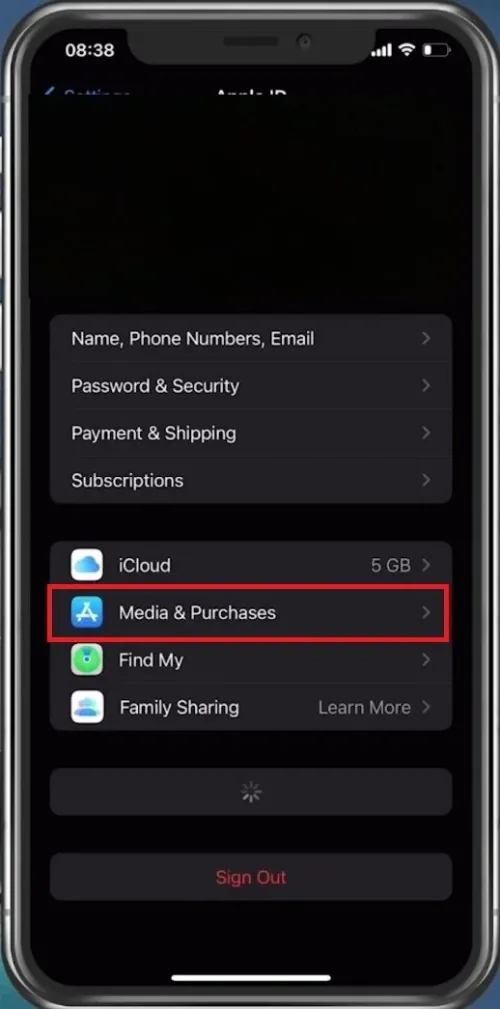
Completely exit your App Store application and open your settings. Tap on your Apple ID name and then tap on Media & Purchases.
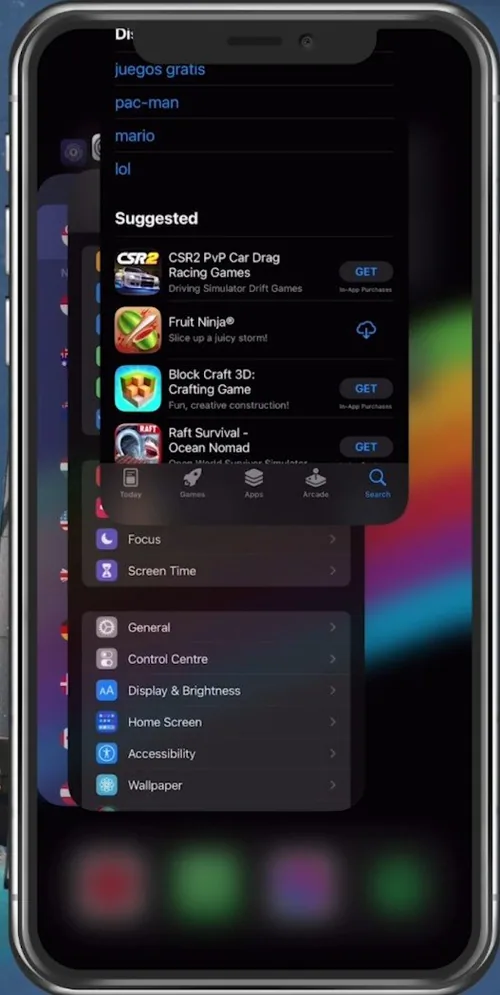
Exit App Store
Completely exit your App Store application and open your settings.
Change your Apple ID Settings
Tap on your Apple ID name and then tap on Media & Purchases.
Change Apple ID Country
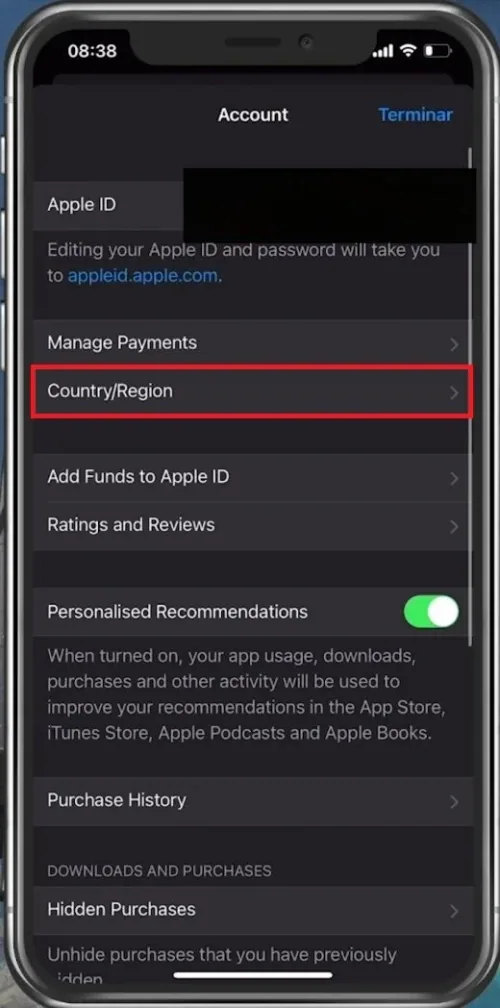
Selecting View Account will ask you to use your passcode or Face ID to show you your account information. Tap on Country / Region. After a second, select Change Country or Region.
This is essential, as Apex Legends mobile has been released in Australia, New Zea…
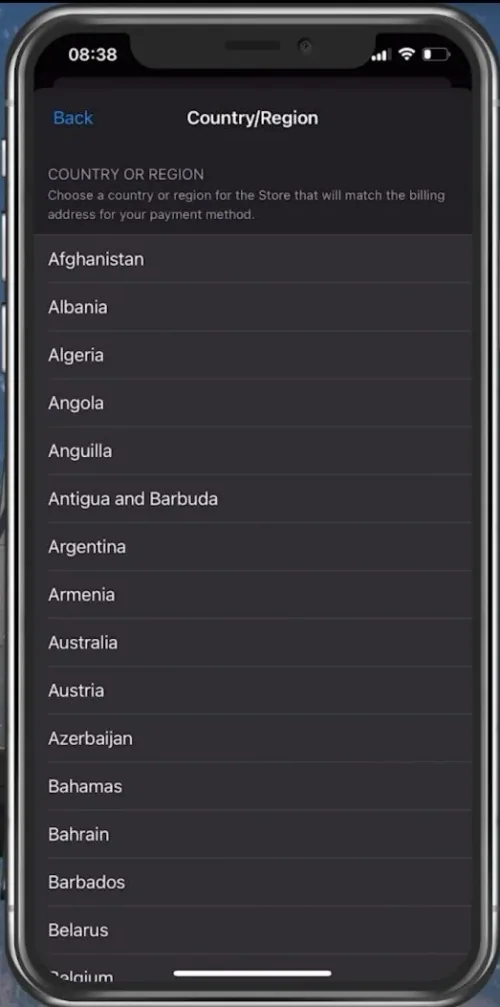
This is essential, as Apex Legends mobile has been released in Australia, New Zealand, Singapore, Malaysia, Philippines, Indonesia, Mexico, Peru, Argentina, and Colombia. If your App Store region is already set to one of these countries, you can search for Apex Legends in your App Store and download it immediately. Change your country to one of the countries listed previously, and you will be asked to add a payment method and address for your new region. You can use neither for your payment method nor a random address for your new region. Random addresses for all of these countries can be found online.
Download Apex Legends
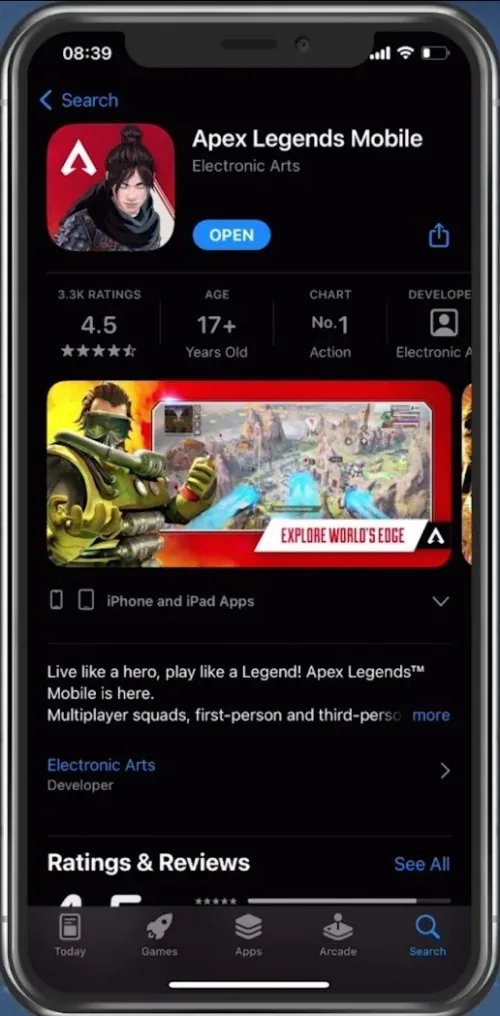
After all this, you can re-open your App Store application and look up Apex Legends. You should see the app listed, and you can download it from there. After the download is completed, you will most likely need to use a VPN service to play Apex Legends while it’s still not being released globally. Make sure to select a country closest to you in order to reduce your overall latency while playing Apex Legends mobile.
Video walkthrough
If it does not work
- If the current interface differs, compare it with the recorded video walkthrough.