
Gaming · Windows
Apex Legends - Fix Easy Anti Cheat Error on Windows 11
Original source date
Answer
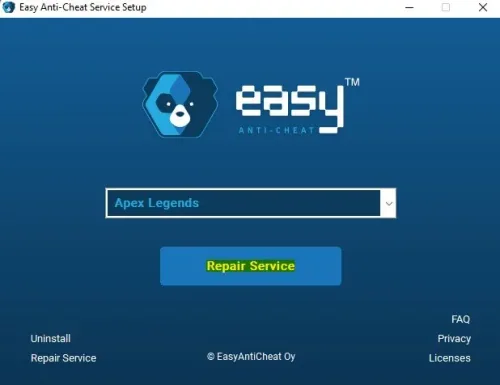
Open up Steam and navigate to your game library. Right-click Apex Legends and select Properties. In the Local Files tab, click on Browse... Your file explorer will open up, where you will have to navigate to the EasyAntiCheat folder, and here double-click the EasyAntiCheat_Setup application. On this window, make sure that Apex Legends is selected in the drop down menu and select Repair Service. This should only take a few seconds to complete.
Reinstall Easy Anti Cheat
Open up Steam and navigate to your game library. Right-click Apex Legends and select Properties. In the Local Files tab, click on Browse ...
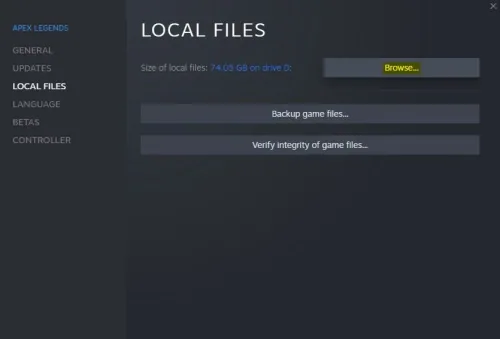
Your file explorer will open up, where you will have to navigate to the EasyAntiC…
Your file explorer will open up, where you will have to navigate to the EasyAntiCheat folder, and here double-click the EasyAntiCheat_Setup application. On this window, make sure that Apex Legends is selected in the drop down menu and select Repair Service. This should only take a few seconds to complete.
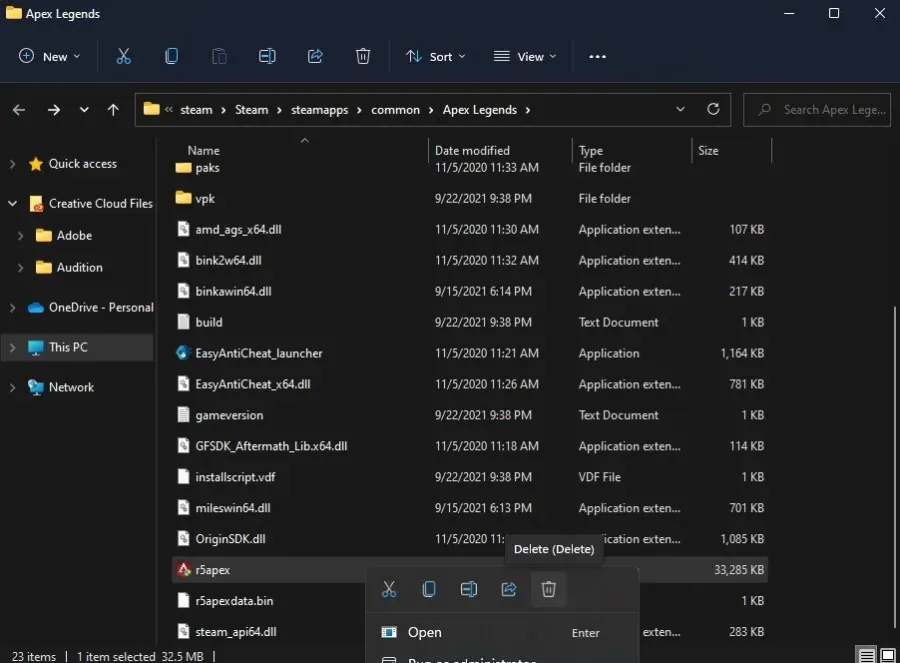
Delete the r5Apex.exe Application
Close the Anti-Cheat window, and go back to the Apex Legends folder, where you have to delete the r5apex application.
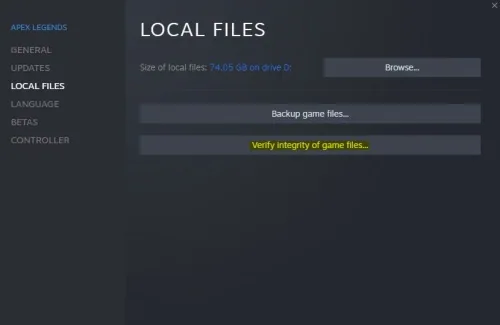
Verify the Integrity of the Apex LegendsGame Files
Close your file explorer, and back in your Apex Legends properties, select Verify Integrity of game files in your General tab. This will redownload and replace any missing or corrupted game files and should take a minute to complete.
End 3rd-Party Applications
If the easy anti-cheat error persists, you most likely have software running on your system, hindering you from playing the game. We suggest closing recently installed programs that can change your files or use up your available resources, such as OBS, Shadowplay, CCleaner or Adobe applications, to troubleshoot which program is causing the error.
Allow Apex Legends to Bypass the Windows Firewall
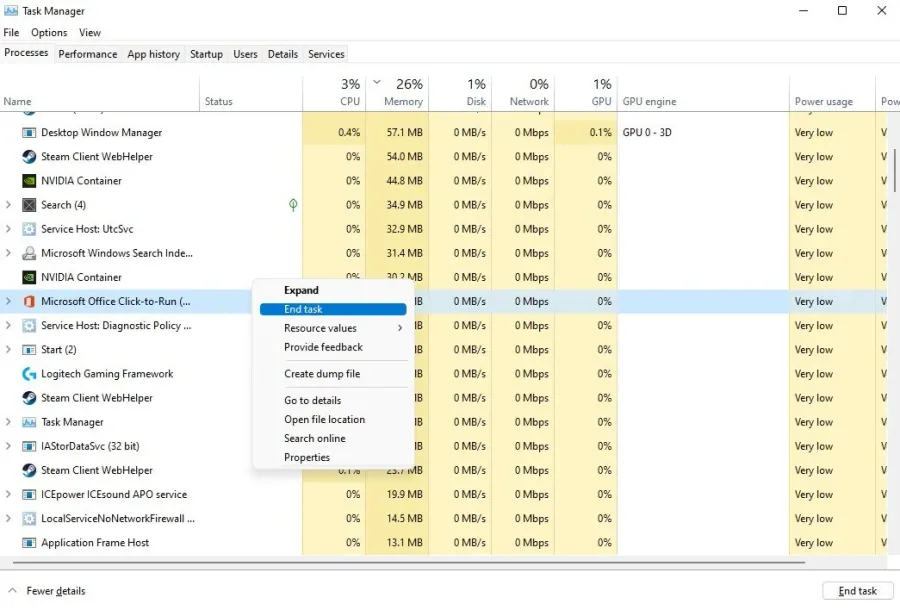
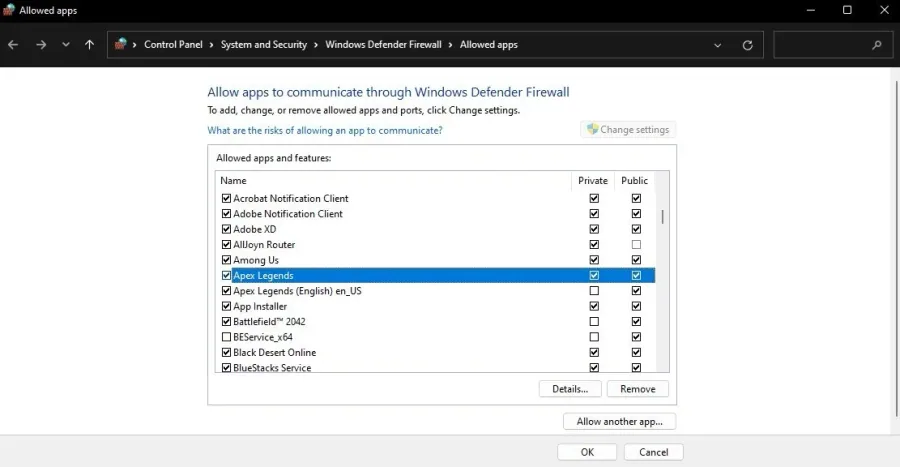
Sometimes, your Firewall or Antivirus application can negatively impact the game’s anti-cheat. Open up your Task Manager by searching for it in your start menu search. In the Processes tab, you end programs from running that you don’t need while playing the game, which could trigger the anti-cheat software. Ensure your Firewall is not blocking parts of the software. Search for Firewall in your start menu search to open up your Firewall & Network Protection system settings window. Select to Allow an app through firewall. Select Change settings, and then Allow another app. Select Browse, and your file explorer will open up. Navigate to the drive you saved the game; this could be in your Steam or Origin files. The steam version is saved under Program Files > Steam > Steamapps > common and lastly Apex Legends. Select the Apex Legends application and click on Open. This will allow you to exclude the application from being blocked by your firewall and will, for some users, prevent the issue.
Video walkthrough
If it does not work
- If the current interface differs, compare it with the recorded video walkthrough.