
Mac OS · macOS
Change System Alert Sounds and Volume on Mac
Source-checked About 10 minutes
Answer
Open System Settings > Sound to choose an alert sound, set alert volume, and control whether interface feedback and startup sound play.
Open Sound settings
Choose Apple menu > System Settings > Sound.
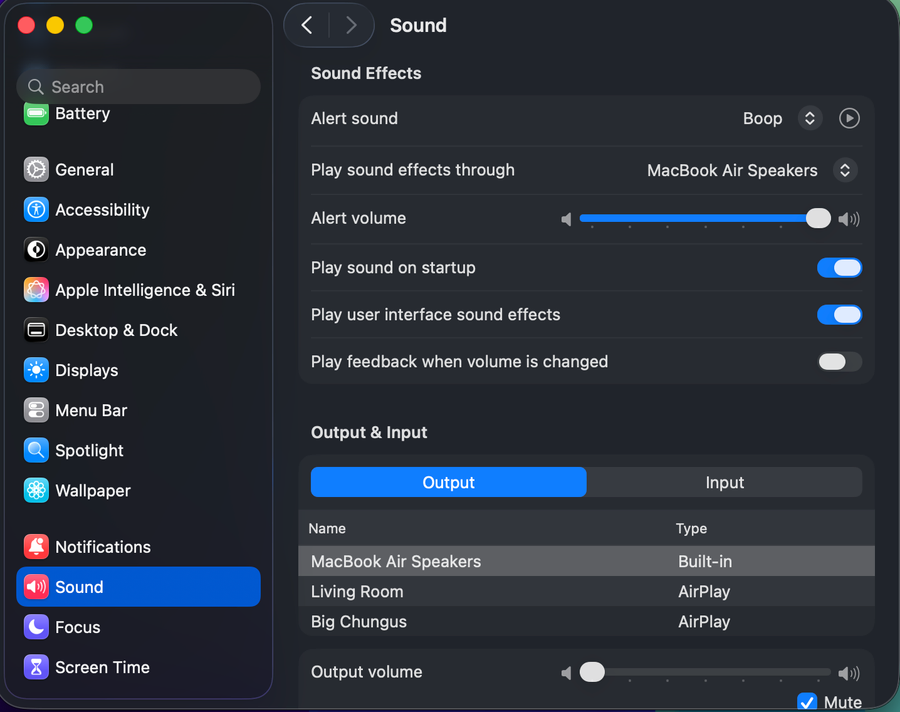
Choose an alert
Under Sound Effects, select the alert sound and the output device used for alerts.
Set levels and feedback
Adjust Alert volume and the controls for user-interface sound effects and startup sound where available.
Test output separately
If no alert plays, verify the selected output device and main output volume under Output.
Video walkthrough
If it does not work
- If “Change System Alert Sounds and Volume on Mac” remains unresolved, identify the first numbered step that produces a different result and preserve that screen, file, log, or message. Recheck the specific account, permission, storage, connection, source-media, or hardware prerequisite above, then follow only the matching Apple Support recovery path; do not combine unrelated resets, bypasses, unofficial installers, or third-party repair tools.
Sources and verification
Checked against official documentation on . Scope: macOS.
Follow the linked first-party guidance if labels differ after a platform or app update.