
iOS · iPhone & iPad
Recover Recently Deleted Photos on iPhone
Source-checked About 10 minutes
Answer
Open Photos > Collections > Recently Deleted, unlock the album, select the photos, then tap Recover. Photos are available there for 30 days after deletion.
Act before the deletion deadline
Photos and videos normally remain in Recently Deleted for 30 days, with the remaining time shown on each item. After that period, or after manual permanent deletion from this album, Apple says they cannot be recovered through Photos. Start with Recently Deleted before trying unrelated recovery software.
Open the protected album
Open Photos, swipe or scroll to Collections, and find Recently Deleted under Utilities. Tap View Album, then unlock it using Face ID, Touch ID, or the device passcode when prompted. This authentication helps prevent someone with an unlocked phone from browsing deleted media.
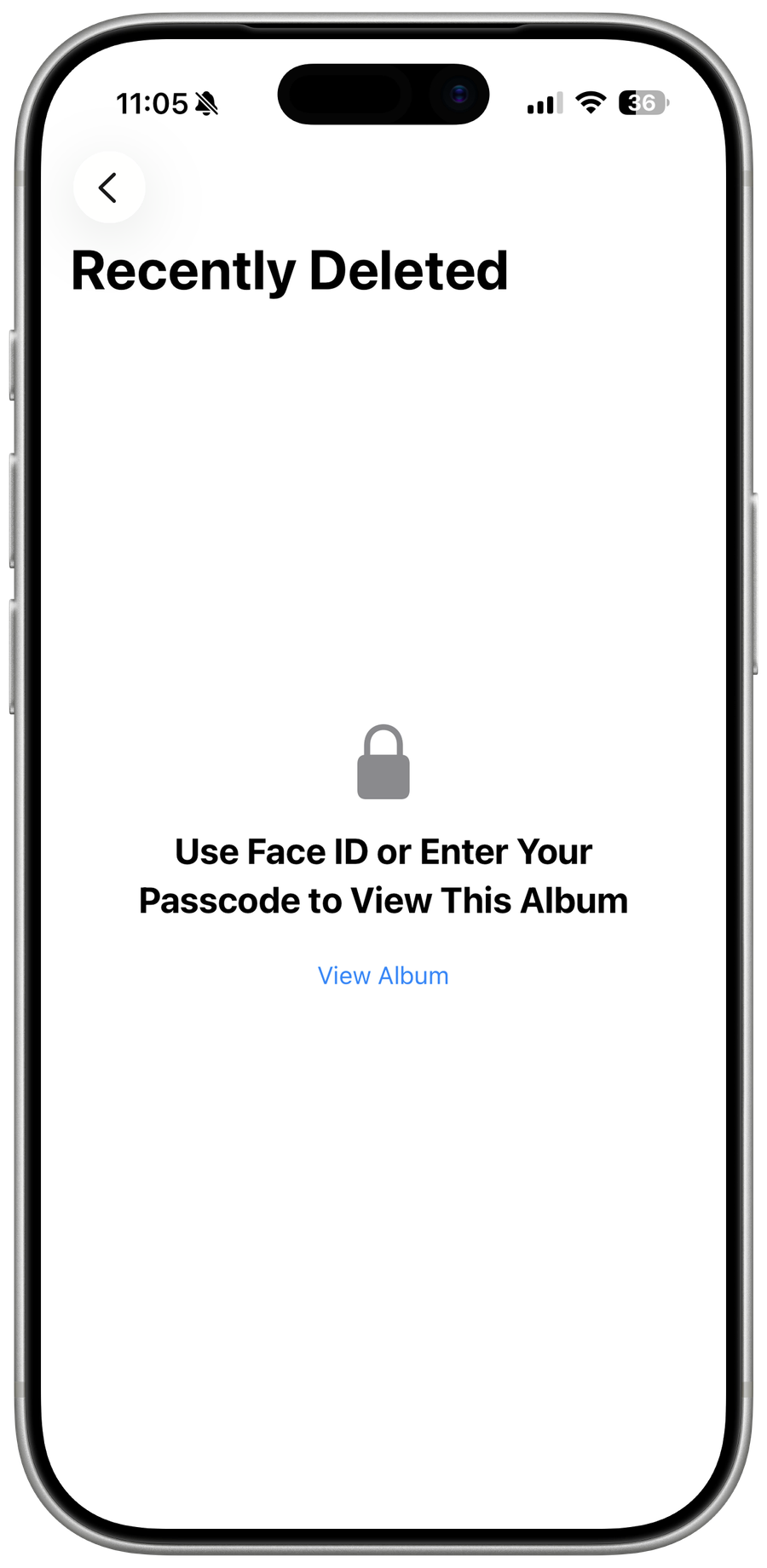
Inspect the available items
Review the thumbnails and remaining-day labels. Open an item for a closer look if necessary. If the photo is absent, confirm you are using the expected Apple Account and library; with iCloud Photos, a deletion can synchronize across all devices using that library.
Recover one photo or video
Open the intended item, tap Recover, and confirm. Photos returns it to the library rather than creating a duplicate download. Search by its approximate capture date if it does not appear among the most recent photos.
Recover several items
In Recently Deleted, tap Select, mark each photo or video, then choose Recover. Use Recover All only after checking the entire album, because it restores every remaining item. Wait for Photos to finish, particularly when recovering large videos or using iCloud Photos.
Verify the restored library
Return to the main library and open several recovered items to confirm they display or play correctly. If iCloud Photos is enabled, allow time for the recovery to synchronize to other devices. Keep a separate backup of irreplaceable media instead of relying on the 30-day album.
Video walkthrough
If it does not work
- If the item is absent, check its 30-day deadline, the correct Apple Account and library, and whether it was permanently deleted from Recently Deleted.
- If recovery completes but the item is hard to find, search the library around its original capture date rather than today's date.
Sources and verification
Checked against official documentation on . Scope: iPhone & iPad.
Follow the linked first-party guidance if labels differ after a platform or app update.