
Tech How reference
Complete Guide to iPhone Battery Health in 2026 (Cycles, Degradation & Tips)
Learn how to check iPhone battery cycles, understand battery degradation, and get 10 expert tips to extend your battery life in 2026. Complete guide inside.
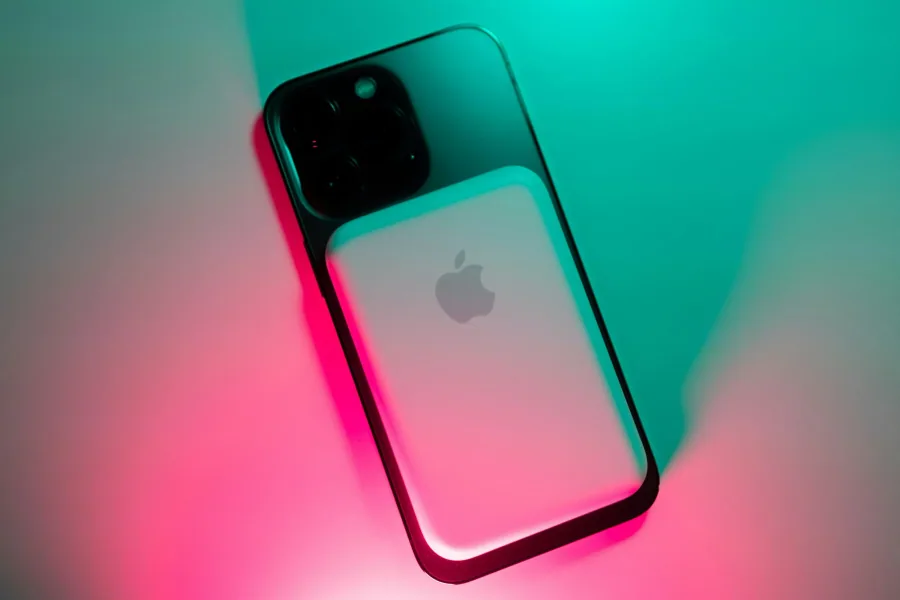
Learn everything about iPhone battery health, how to check battery cycles on iPhone, understand battery degradation, and get proven tips to extend your battery life.
What Is iPhone Battery Health?
iPhone battery health refers to your device's current capacity compared to when it was brand new. When you first buy an iPhone, it has 100% battery health, meaning it can hold its full designed charge. Over time, as you use and recharge your device, the battery chemically degrades, reducing its maximum capacity.
For example, if your iPhone shows 87% battery health percentage, it can only hold 87% of the charge it could when new. This is why older phones seem to die faster; even at "100%" charge, they actually have less total power available.
Apple considers any iPhone battery at 80% health or above to be operating normally. Below that threshold, you may notice significant performance impacts, and Apple recommends iPhone battery replacement.
Understanding battery degradation is crucial because it affects everything from how long your phone lasts between charges to its resale value. The good news? With proper charging habits, you can significantly slow down degradation.
How to Check Battery Health on iPhone
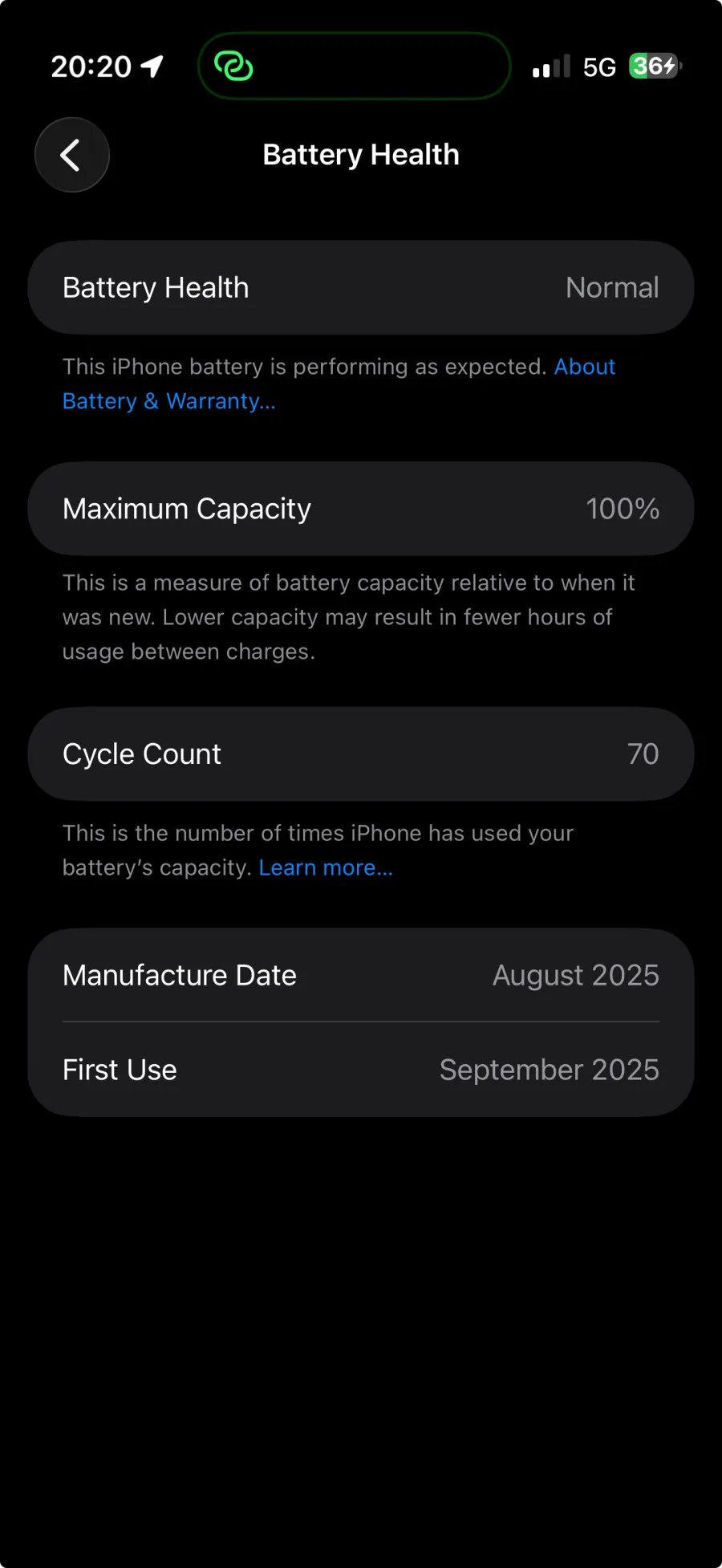
Apple provides built-in tools to monitor your iPhone battery health. Here's exactly how to check battery health on iPhone:
For All iPhones Running iOS 16 or Later
Open Settings
Scroll down and tap Battery
Tap Battery Health & Charging
Here you'll see:
Maximum Capacity: Your battery's current health percentage
Peak Performance Capability: Whether your phone can deliver peak performance
Optimized Battery Charging: Toggle this on to reduce battery aging
How to Check Battery Cycles on iPhone
Your iPhone tracks how many complete charge cycles it has gone through. Here's how to find your iPhone battery cycle count:
On iPhone 15 and newer:
Go to Settings → Battery → Battery Health
Look for Cycle Count
On older iPhones (iPhone 14 and earlier): Unfortunately, Apple doesn't show the cycle count directly on older models. You'll need to:
Connect your iPhone to a Mac
Open System Information (hold Option and click Apple menu → System Information)
Select USB → iPhone in the sidebar
Look for Cycle Count under battery information
Alternatively, you can use tracking apps like Battery Health Pro to monitor your charging habits and estimate your cycle count based on actual usage data.
Understanding iPhone Battery Cycles and Degradation
A battery cycle is completed when you use 100% of your battery's capacity, but it doesn't have to happen all at once. Understanding cycles is key to managing battery degradation.
How iPhone Battery Cycles Work
Here's an example of how iPhone battery cycles accumulate:
Day 1: You use your phone from 100% to 60% (40% used), then charge back to 100%
Day 2: You use from 100% to 40% (60% used)
Total: 40% + 60% = 100% = 1 complete cycle
This is why Apple calls them "full recharges", it's the cumulative percentage charged, not the number of times you plug in.
Why Battery Cycles Matter for Degradation
Apple designs iPhone batteries to retain 80% of their original capacity after approximately 500 complete cycles (or 1,000 cycles for iPhone 15 and newer models). After that, battery degradation accelerates.
Here's what the numbers mean in practice:
The Truth About Charging to 100%
You've probably heard conflicting advice about charging. Here's the science behind battery degradation:
Lithium-ion batteries experience the most stress at very high (above 80%) and very low (below 20%) charge levels
Keeping your battery between 20-80% most of the time can significantly slow battery degradation
However, occasional full charges (to 100%) are fine and help calibrate the battery meter
Apple's Optimized Battery Charging feature learns your routine and waits to charge past 80% until you need it
How to Track Your Real Charging Habits
While iOS shows your current iPhone battery health, it doesn't give you detailed insights into your charging patterns. This is where dedicated tracking apps become invaluable for preventing battery degradation.
Introducing Battery Health Pro
Battery Health Pro is a comprehensive battery monitoring app that goes beyond what iOS offers. Instead of just showing you a battery health percentage, it tracks your actual charging behavior over time.
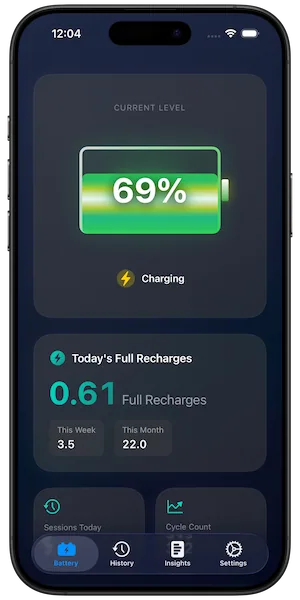
Full Recharge Tracking
The app's standout feature is Full Recharge Tracking, the same metric Apple uses internally to calculate battery cycles. Every time you charge, the app adds up the percentage:
Charge from 30% → 70% = 0.4 full recharges
Charge from 10% → 100% = 0.9 full recharges
Three partial charges of 35% each = 1.05 full recharges
This gives you a precise picture of how hard you're working your battery and helps you understand your battery degradation rate.
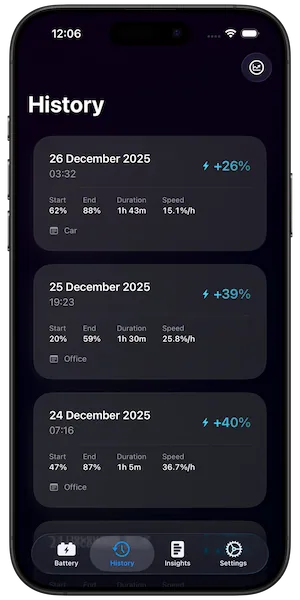
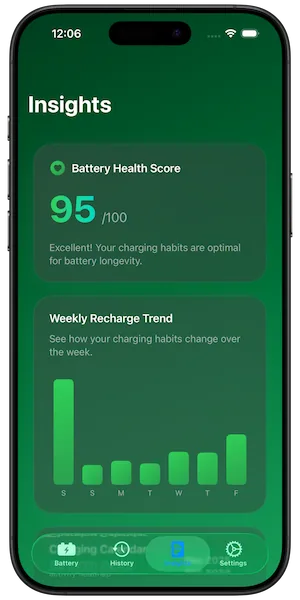
AI-Powered Battery Health Score
The Battery Health Score analyzes your charging patterns and gives you an overall rating with personalized recommendations. It considers:
Time spent above 80%
Overnight charging frequency
Average daily cycles
Charging speed patterns
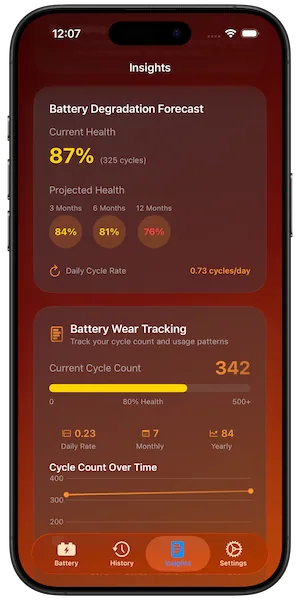
Battery Degradation Forecast
Perhaps the most powerful feature for understanding battery degradation is the Degradation Forecast, which predicts your iPhone battery health over the next 3, 6, and 12 months based on your actual usage patterns.
Smart Charge Alerts
Set custom notifications to remind you to unplug at specific charge levels. For example, set an alert at 80% to avoid keeping your phone at full charge for extended periods, a key strategy to slow battery degradation.
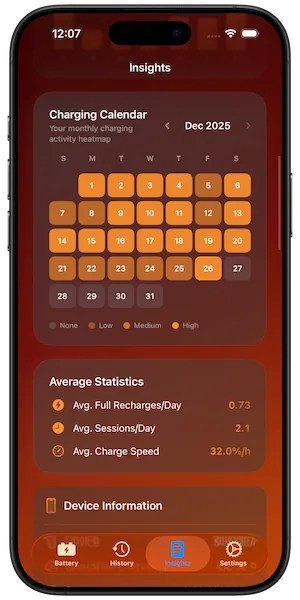
Charging Calendar Heatmap
The visual Charging Calendar shows your charging patterns as a heatmap, making it easy to spot trends like how often you charge overnight or during work hours.
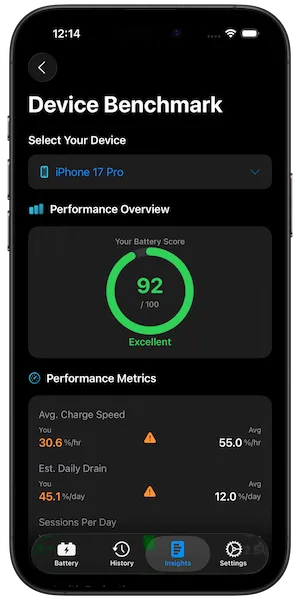
Device Benchmark Comparison
Compare your battery's performance against similar iPhone models to see if your device is aging normally or experiencing faster battery degradation than expected.
Privacy-First Design
Unlike many battery apps, Battery Health Pro works 100% offline with no accounts, no tracking, and no data collection. All your charging data stays on your device.
Download Battery Health Pro on the App Store
10 Tips to Extend iPhone Battery Life and Slow Degradation
Based on Apple's recommendations and battery science, here are the best practices to maximize your iPhone battery health and minimize battery degradation:
Charging Habits
1. Enable Optimized Battery Charging Go to Settings → Battery → Battery Health & Charging and toggle on Optimized Battery Charging. This feature learns your daily routine and waits to charge past 80% until you need your phone, significantly reducing battery degradation.
2. Avoid Keeping Your iPhone at 100% for Extended Periods If you charge overnight, let iOS manage it with Optimized Charging. If your phone reaches 100% and stays plugged in for hours, consider setting a charge alert at 80%.
3. Don't Let Your Battery Drop to 0% Regularly Deep discharges stress the battery and accelerate battery degradation. Try to charge when you hit 20-30% rather than waiting for shutdown.
4. Use Quality Apple-Certified Chargers Stick with MFi-certified chargers and cables. Cheap knockoffs can deliver inconsistent power that damages battery cells and worsens battery degradation over time.
Temperature Management
5. Avoid Extreme Temperatures Lithium batteries hate extreme heat and cold. The ideal operating range is 16-22°C (62-72°F). Avoid leaving your phone in a hot car or using it extensively in direct sunlight.
6. Remove Your Case While Charging If your phone gets noticeably warm while charging, remove the case to improve heat dissipation and protect your iPhone battery health.
Daily Usage Optimization
7. Use Low Power Mode Strategically When battery is low, enable Low Power Mode (Settings → Battery) to reduce background activity, visual effects, and automatic downloads.
8. Manage Background App Refresh Go to Settings → General → Background App Refresh and disable it for apps that don't need constant updates to extend your iPhone battery health.
9. Keep iOS Updated Apple regularly releases updates that improve battery efficiency. Stay current with Settings → General → Software Update.
Long-Term Storage
10. Store at 50% for Extended Periods If you're storing an iPhone for weeks or months, charge it to around 50% first. Storing at full charge or completely empty accelerates battery degradation.
Frequently Asked Questions About iPhone Battery Health
Take Control of Your iPhone Battery Health Today
Understanding your iPhone battery health is the first step to extending its lifespan and reducing battery degradation. With the right knowledge and tools, you can keep your device running strong for years.
Want detailed insights into your charging habits? Battery Health Pro gives you everything you need, full recharge tracking, health scores, battery degradation forecasts, and smart alerts, all while keeping your data completely private.
📲 Download Battery Health Pro — It's Free
Learn more: Battery Health Pro on NextTap.net